Microsoft Teams Microphone Not Working: A Troubleshooting Guide
Published March 9, 2024, updated August 4, 2026

If your microphone is not working in Microsoft Teams, the fix is usually one of a handful of things: a loose or muted hardware connection, the wrong microphone selected in Teams settings, an operating-system privacy setting blocking app access, a system sound setting, or an outdated audio driver. You can work through all of them in a few minutes.
Take the steps below in order. They run from the most common and quickest to check down to the ones that take longer, so most people stop after step three or four.
1. Check the hardware
Start with the physical stuff, because it is the most common culprit and the fastest to rule out. Make sure the microphone or headset is plugged in firmly, and if it connects by USB, try a different port. Then check for a mute switch: many headsets have one on the cable or an earcup, and it is easy to bump without noticing. If the microphone has a light, see whether it is showing muted.
2. Test the microphone outside Teams
Before touching any settings, find out whether the microphone works at all. Record a few seconds in Voice Recorder on Windows or Voice Memos on a Mac and play it back. If the recording is silent there too, the problem is the microphone or the system, not Teams, and you can skip straight to steps 4 and 5. If the recording sounds fine, Teams is the problem and step 3 will usually fix it.
3. Check which microphone Teams is using
Teams picks an audio device on its own, and it does not always pick the one you are wearing. A laptop with a webcam, a docking station, and a headset can have three or four microphones, and Teams may be listening to the one across the room. To check:
- Open Teams and click the three dots next to your profile picture in the top right corner.
- Choose Settings, then Devices.
- Under Audio devices, look at which microphone is selected and change it to the one you are actually using.
- Use the "Make a test call" button on the same screen. It records you and plays it back, which settles the question immediately.
If your microphone is missing from the list entirely, unplug it, plug it back in, and restart Teams. Teams only scans for devices at certain moments, and a restart forces it to look again.
4. Check system sound and privacy settings
If Teams cannot see the microphone or the right device is selected and still nothing comes through, the block is usually at the operating-system level. First the sound settings:
-
Windows: Right-click the speaker icon in the system tray and choose "Open Sound settings." Under Input, confirm the right microphone is selected, then speak and watch the level meter. If the meter moves, the system hears you and the problem is upstream in Teams. If it does not, check the input volume is not at zero.
-
macOS: System Settings > Sound > Input. Same check: select the right device, speak, and watch the meter.
While you are here, check the operating system's microphone privacy permission, which is a common cause and easy to miss because Teams shows no error when it is the problem. The microphone simply stays silent.
-
Windows: Settings > Privacy & security > Microphone. Confirm that microphone access is on, that apps are allowed to access it, and that Microsoft Teams appears in the list and is switched on.
-
macOS: System Settings > Privacy & Security > Microphone. Confirm Microsoft Teams is listed and enabled.
If a device-management policy set by your workplace is blocking microphone access, you will not be able to change this yourself and it is worth raising with whoever manages your computers.
5. Update the audio driver
On Windows, an outdated or half-broken audio driver can leave the microphone visible but silent. Run Windows Update first, since it delivers most driver fixes. If the microphone or headset came with its own software from the manufacturer, check that for an update too. On a Mac, audio drivers ship with the operating system, so being current on macOS updates is the whole job.
6. Restart Teams, then the computer
Quit Teams fully, not just the window: right-click the Teams icon in the system tray or dock and choose Quit, then reopen it. Teams holds onto audio devices in ways that a full quit clears. If that does not do it, restart the computer, which clears the same problem one level down, where another program has claimed the microphone and not let go.
7. Close other apps that use the microphone
Only one application can reliably hold the microphone at a time on some setups. Zoom, Discord, a browser tab with a meeting still open, and recording software are the usual suspects. Close anything else that could be listening and try the Teams test call again.
8. Reinstall Teams
If everything above checks out and Teams alone still cannot hear you, reinstall it. Uninstall Teams, restart the computer, download a fresh copy from Microsoft, and sign back in. This clears corrupted local settings that no amount of toggling will reach.
9. Escalate it
If a fresh install on a working microphone still fails, the problem is deeper than a settings walkthrough, and it is time to hand it to whoever supports your computers, with a useful summary: the microphone records fine outside Teams, permissions are on, drivers are current, and a reinstall did not fix it. That one sentence saves the first twenty minutes of the support call.
Work through the steps in order and most microphone problems turn up in the first three or four.
When it keeps happening
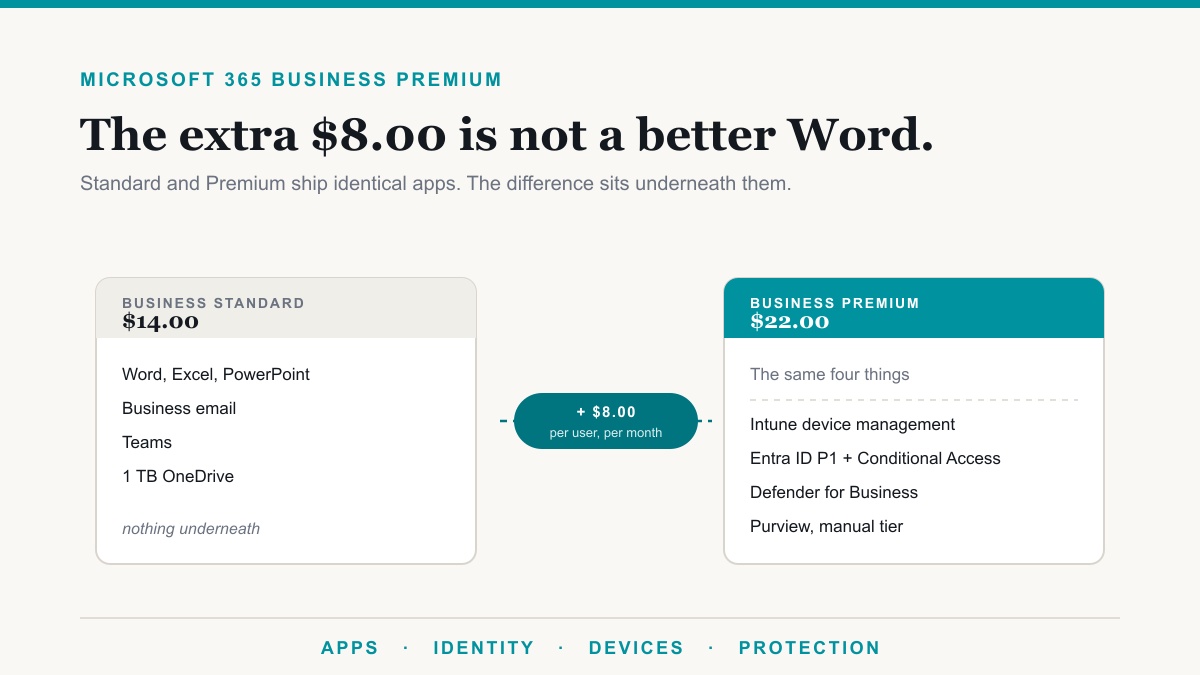
One person with a bad headset is a five-minute fix. The same problem across a team, every week, is usually not really an audio problem. It is inconsistent device setup: drivers at different versions, privacy permissions set differently on every machine, and nobody keeping them aligned. That is what managed IT is for, and the tooling that fixes it is already included in Microsoft 365 Business Premium if you are paying for it.
If meetings keep starting with two minutes of "can you hear me now," Desert Lakes Solutions offers a no-pressure discovery call to look at how your devices are set up and what it would take to make it stop. Book a discovery call.