How to Send Encrypted Email in Microsoft 365
Published July 27, 2026
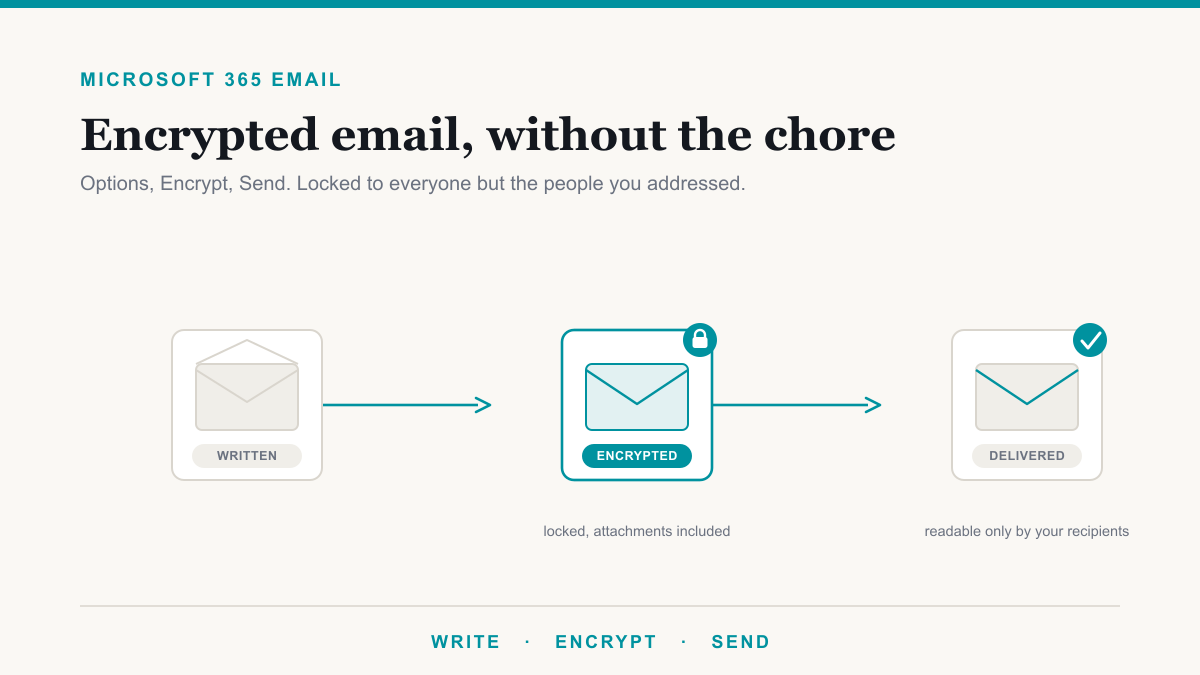
To send encrypted email in Microsoft 365, write your message in Outlook, open the Options tab, choose Encrypt, and send it like any other email. The message and its attachments are then locked so that only the people you addressed can read them, even if the email is intercepted or lands in the wrong hands along the way. For the medical practices, law offices, and financial firms that send patient details, case files, and account information every day, that one habit is often the difference between routine correspondence and a reportable incident. This guide covers how to send encrypted email in Microsoft 365 step by step, what your recipients will see, how to make encryption automatic, and which licenses actually include it.
Microsoft 365 email is already encrypted in transit. That is not enough.
Every email you send through Microsoft 365 is already encrypted with TLS while it travels between mail servers. Think of TLS as an armored truck between post offices: nobody can read the mail while it is on the road. But the truck's protection ends at delivery. Once the message lands in an inbox, TLS has done its job, and anyone with access to that mailbox can read it, forward it, or print it. If you typed one wrong letter in the address, the unintended recipient reads it too.
Message-level encryption protects the message itself rather than the road it travels. The email stays locked wherever it goes, and only the recipients you chose can open it. That is what the Encrypt button in Outlook does, and it is the layer that matters when the content is patient information, legal matters, or financial records.
How to send an encrypted email in Outlook
The steps take about five seconds once you know where to look:
- Start a new message in Outlook as you normally would.
- Open the Options tab on the ribbon. In older desktop versions the setting may sit under Options and then Permissions, but it is the same feature.
- Choose Encrypt. You can send with the default protection or pick a specific option such as Encrypt-Only or Do Not Forward.
- Send. Nothing else changes on your end. Attachments are protected along with the message.
The two options you will see most often behave differently, and it is worth knowing which to reach for:
| Encrypt-Only | Do Not Forward | |
|---|---|---|
| Who can read it | Only the recipients you addressed | Only the recipients you addressed |
| Forwarding | Allowed | Blocked |
| Printing and copying | Allowed | Blocked |
| Best for | Everyday sensitive mail that recipients may legitimately need to pass along | The most sensitive messages: payroll, legal strategy, patient details |
Both come from the same underlying service, Microsoft Purview Message Encryption. Microsoft's Message Encryption documentation covers the mechanics in depth if you want the full picture.
Sensitivity labels do the remembering for you
The Encrypt button relies on a person remembering to click it, and busy people forget. Sensitivity labels remove that dependency. A label such as "Confidential - Patient" or "Confidential - Client" can carry encryption settings with it, so applying the label in one click protects the message, marks it clearly, and enforces the same rules every time. Labels also work on documents, not just email, so the protection follows a file even after it leaves the message. If labels are new to you, our guide to Microsoft Purview sensitivity labels explains how to set up a small, sensible label set without drowning your team in choices.
What the person on the other end sees
The most common worry about encrypted email is that it will confuse the recipient. In practice the experience is smoother than most people expect.
If the recipient is also on Microsoft 365, the encrypted message simply opens in Outlook like any other email. No portal, no extra steps. If the recipient is on Gmail, Yahoo, or another service, they receive a notification email with a link. Clicking it opens the message in their browser after they either sign in with the account they already have or request a one-time passcode sent to the same address. They can read the message and reply securely from that same browser page. There is no software to install and no password for you to phone over separately, which is exactly the kind of workaround that used to make secure email a chore.
Make encryption automatic with a DLP policy
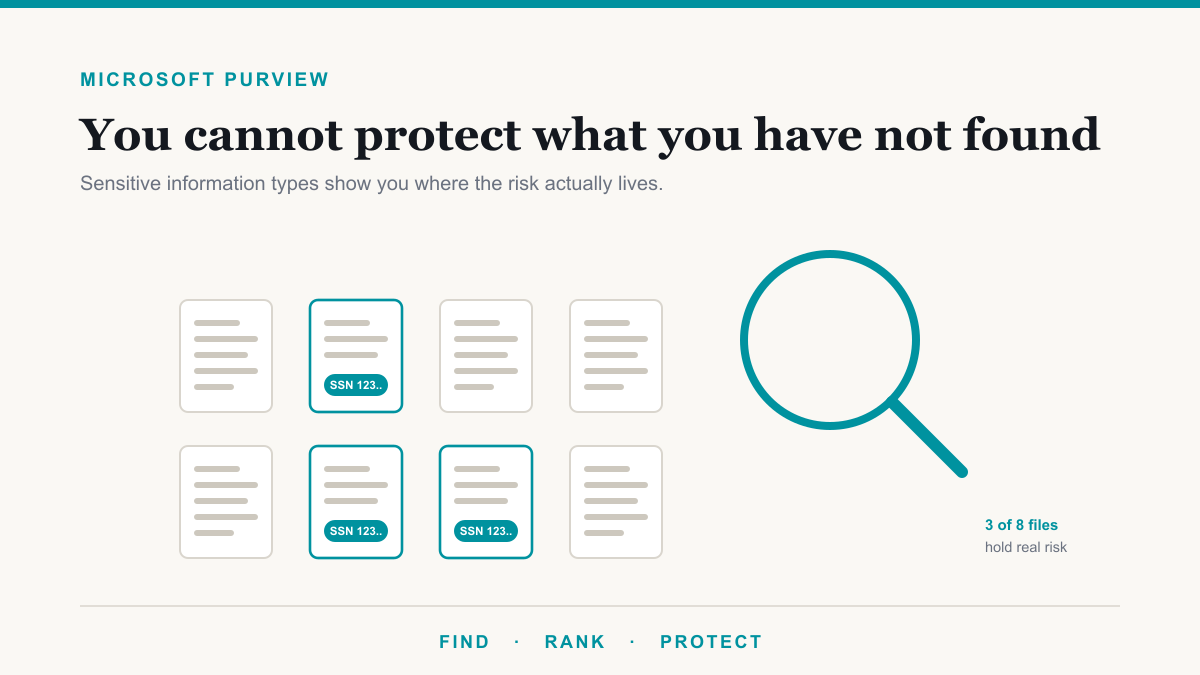
The strongest setup does not depend on anyone's memory at all. A data loss prevention policy can watch outgoing email for sensitive content, things like Social Security numbers, credit card numbers, or medical record numbers, and apply encryption automatically when it finds them. The person sending the message does not have to do anything, and the one time someone forgets on a busy Friday, the policy catches it. For a practice that emails patient information routinely, this safety net is usually worth more than any amount of training. We cover how those policies work in our guide to data loss prevention with Microsoft Purview.
What it costs: the licensing you need
The honest answer is that many organizations already own this and have never turned it on. Microsoft Purview Message Encryption is included with Microsoft 365 Business Premium, Microsoft 365 E3 and E5, and Office 365 E3 and E5. It is not included with Business Basic or Business Standard, though it can be added with an Azure Information Protection Plan 1 add-on. Microsoft's Purview service description lists the feature-by-feature breakdown, and it is worth checking what your plan includes before buying anything new.
If your organization runs on Business Premium, which is common for small medical, legal, and professional-services firms, you can likely start sending encrypted email this week with no new spend.
Encrypted email and HIPAA
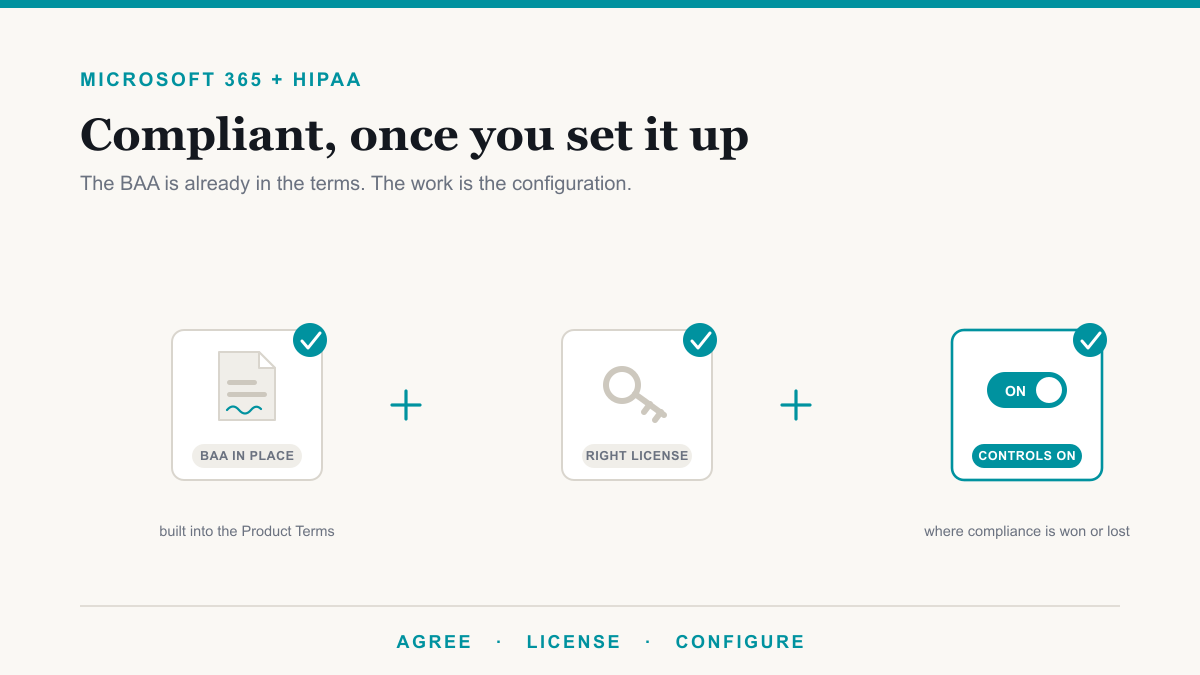
For healthcare organizations, the HIPAA Security Rule requires safeguards for patient information sent over open networks. Encryption is listed as an addressable implementation specification, which does not mean optional: it means you must either implement it or document why a reasonable alternative covers the risk. In practice, sending patient information over ordinary unencrypted email is very hard to defend, so most practices treat message encryption as a requirement. The HHS Security Rule guidance is the authoritative source on what the rule expects. Law firms and financial offices face parallel obligations from bar associations, the FTC Safeguards Rule, and client contracts, and the same tooling answers all of them. If you are working through those requirements more broadly, our compliance services page outlines how we approach it, and our medical IT page covers the healthcare-specific side, and dental offices can start with our dental managed IT services page.
Frequently asked questions
Is email in Microsoft 365 already encrypted?
Partly. Microsoft 365 encrypts email in transit with TLS, which protects it while it travels between mail servers. It does not protect the message once it lands in an inbox, and it does not stop the wrong recipient from reading or forwarding it. Message-level encryption, the Encrypt button, closes that gap.
What is the difference between Encrypt-Only and Do Not Forward?
Encrypt-Only locks the message so only authorized recipients can read it, but they can still forward, print, and copy from it. Do Not Forward adds usage restrictions on top of encryption: recipients can read and reply, but forwarding, printing, and copying are blocked. Use Do Not Forward for the most sensitive messages.
Do recipients need Microsoft 365 to read an encrypted email?
No. Recipients in Microsoft 365 open the message normally in Outlook. Recipients on Gmail, Yahoo, or any other service get a notification with a link, then read the message in their browser after signing in with their existing account or entering a one-time passcode. Nothing to install, no password to share by phone.
What license do I need to send encrypted email in Microsoft 365?
Microsoft Purview Message Encryption is included with Microsoft 365 Business Premium, Microsoft 365 E3 and E5, and Office 365 E3 and E5. It is not included with Business Basic or Business Standard, though it can be added. Many organizations already own it and have simply never turned it on.
Is encrypted email required for HIPAA?
The HIPAA Security Rule treats encryption as an addressable specification, which means you must either implement it or document why a reasonable alternative covers the risk. In practice, sending patient information over ordinary unencrypted email is very hard to defend, so most practices treat encryption as required.
Can Microsoft 365 encrypt emails automatically?
Yes. A data loss prevention policy can watch outgoing mail for things like Social Security numbers, credit card numbers, or medical record numbers and apply encryption automatically, so protection does not depend on someone remembering to click a button. Sensitivity labels can also apply encryption by default.
Getting started with encrypted email in Microsoft 365
Encryption protects the message in transit; it does not protect the domain it came from. Run the free email security check to see whether your domain can be spoofed, and if you are in a regulated field, a penetration test is how you prove the whole mail path holds.
To send encrypted email in Microsoft 365, the mechanics are genuinely simple: Options, Encrypt, send. The real work is the setup around it, choosing sensible defaults, deciding when Do Not Forward applies, adding the DLP safety net, and confirming your licensing already covers it. Done once, encryption fades into the background and your team stops thinking about it, which is the goal. If you would like help checking what your Microsoft 365 plan already includes and turning encryption on the right way for your practice or firm, Desert Lakes Solutions offers a no-pressure discovery call to walk through it. Book a discovery call whenever you are ready.