SharePoint Oversharing: Who Can See Your Files?
Published July 27, 2026
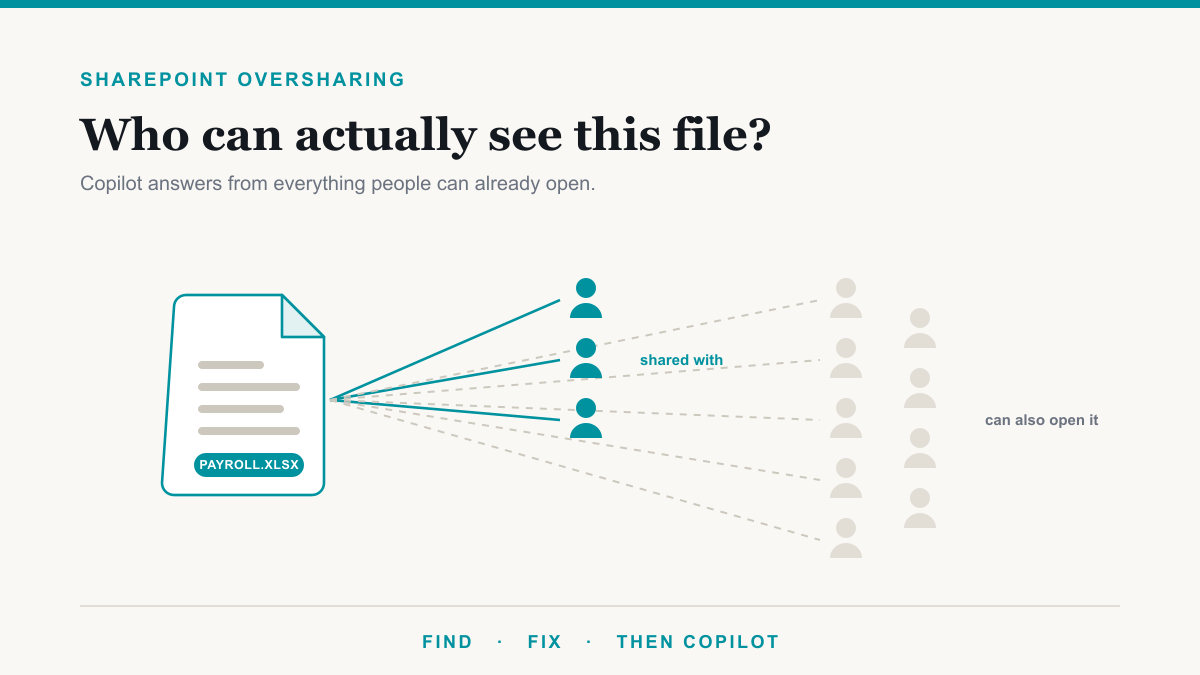
SharePoint oversharing means files in your Microsoft 365 tenant can be opened by far more people than anyone ever intended, usually because of broad sharing links and permissive defaults rather than anyone's bad decision. It matters more now than it did a year ago because Microsoft 365 Copilot answers questions using everything the signed-in person can access, so a payroll spreadsheet that was quietly visible to the whole company can now surface in a chat answer. This guide is for business owners and office administrators who are planning a Copilot rollout, or who simply want a straight answer to who can see the HR folder. It covers how SharePoint oversharing happens, how to find it, and how to fix it without breaking the collaboration your team relies on.
How files end up overshared without anyone noticing
Almost no one decides to expose the salary file to the whole company. Oversharing accumulates through small, reasonable-looking choices, because SharePoint's defaults favor easy collaboration:
- "People in your organization" links. This is a common default link type. It does exactly what it says: anyone at the company who gets the link, or finds the file through search, can open it. People often read it as "the people I sent this to," which it is not.
- Anyone links. These work with no sign-in at all. Forward one outside the company and whoever holds it can open the file. Microsoft's documentation on shareable links explains the types and their reach.
- Site membership sprawl. A site or Team created years ago collects members who changed roles, plus groups like "Everyone except external users" added once to solve an access problem and never removed.
- Files in the wrong place. A sensitive document copied into a broadly shared site inherits that site's audience, no matter how carefully the original was protected.
Each choice made sense in the moment. Stacked over a few years, they produce a tenant where nobody can say with confidence who can see what.
Why Copilot makes oversharing impossible to ignore
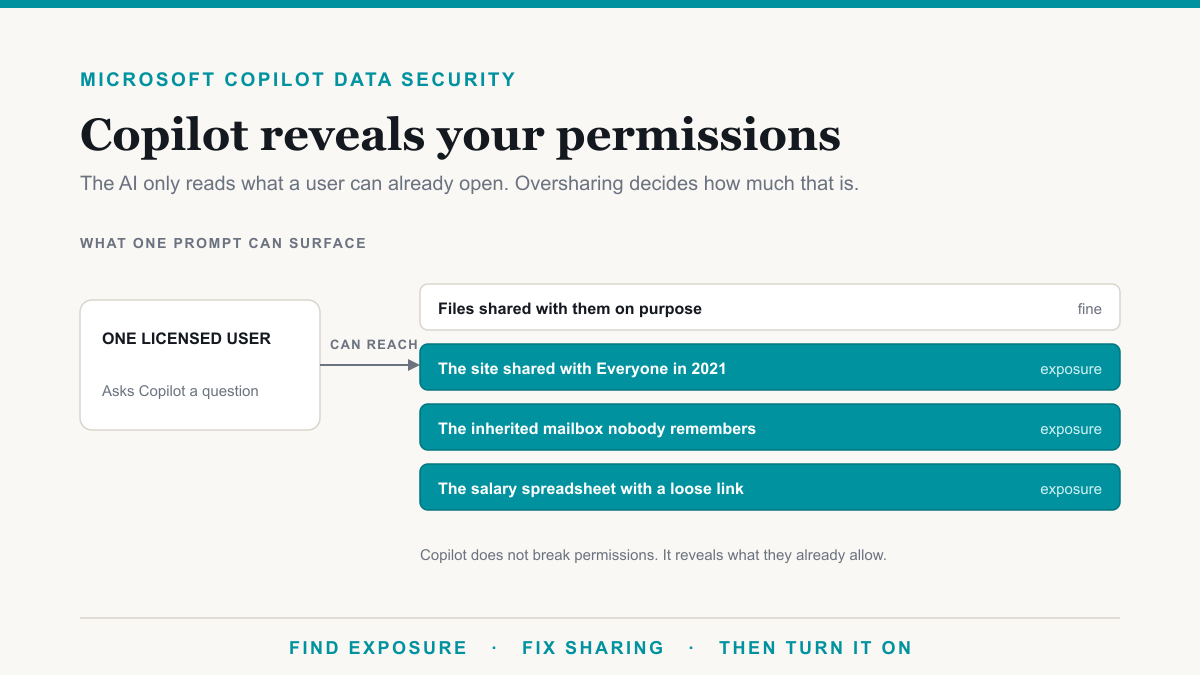
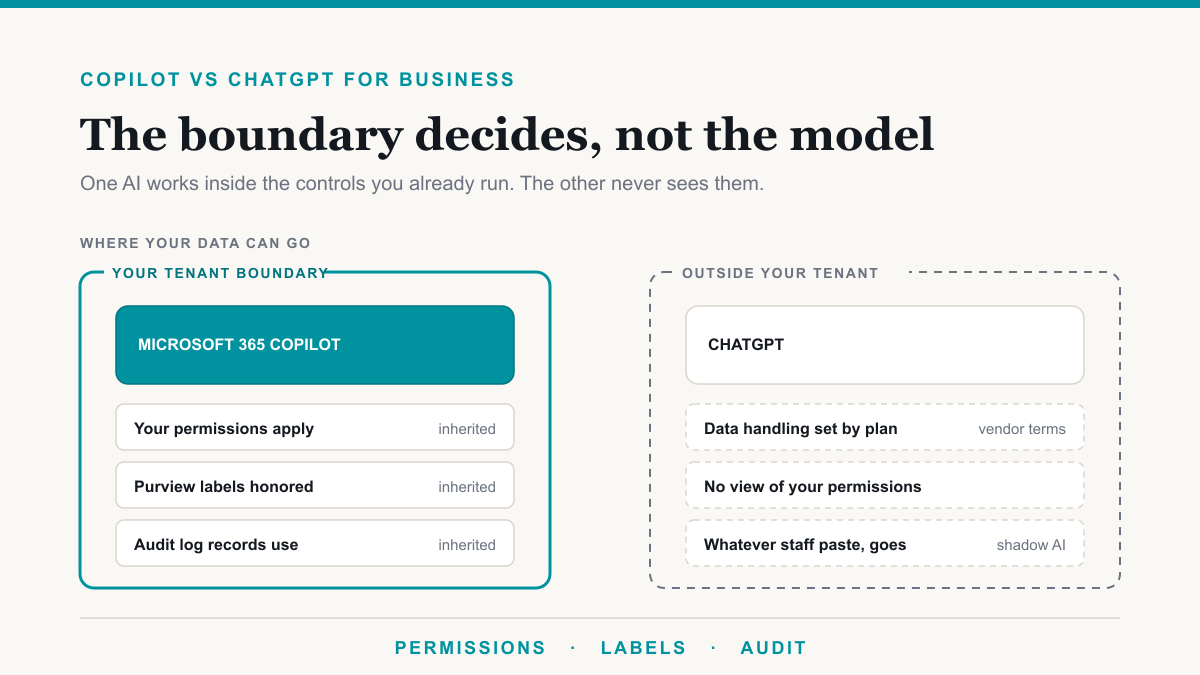
Copilot respects permissions. It will never show someone a file they could not already open, and it grants no new access to anything. Microsoft is clear about this, and it is true. The catch is the word "already." In most tenants, what people can already open is far broader than what anyone thinks they can open.
Before Copilot, that gap was mostly theoretical. Finding an overshared file meant knowing it existed and going looking for it, and almost nobody did. Copilot removes the looking. Someone asks a harmless question like "summarize what we pay for benefits" and gets an answer drawn from a spreadsheet three levels deep in a site they never visit. The access existed for years; Copilot just made it effortless to use. Microsoft considers this a common enough rollout problem that it publishes an oversharing blueprint for Copilot deployments describing exactly this pattern. It is also why we treat permission cleanup as step one in securing Microsoft 365 Copilot, not an afterthought.
How to find out who can see what
The good news is you do not have to guess. Microsoft 365 can report on its own sharing state, and the picture usually comes together in a few passes.
Start with the sharing reports in the SharePoint admin center, which list the sharing links that exist per site, including Anyone links and organization-wide links. That alone often produces the first uncomfortable discovery. SharePoint Advanced Management goes further with data access governance reports that rank overshared sites across the tenant and site access reviews that push the "who still needs this" question to the people who actually own each site. Microsoft has bundled SharePoint Advanced Management with Microsoft 365 Copilot licensing, so if you are buying Copilot anyway, you likely have these reports available.
The other half of the question is which files actually matter. A thousand overshared lunch menus are noise; one overshared patient list is a problem. Purview's data classification tools can show where content like Social Security numbers, health information, and financial data actually lives, so you clean up the sites that hold something sensitive first. We run this kind of oversharing scan for clients regularly, and the pattern repeats: a small number of sites account for most of the real exposure.
How to fix SharePoint oversharing
Resist the urge to lock everything down in one weekend. The durable fix is a sequence, roughly in this order:
- Change the default sharing link to "Specific people." This is the highest-value single change. New shares stop defaulting to the whole company, and existing links keep working while you review them.
- Rein in Anyone links. Set expiration on them, or disable them for sites that have no business sharing publicly. Many organizations allow them only on one designated public-documents site.
- Clean the sensitive sites first. HR, finance, leadership, and anything holding client or patient data. Remove broad links, replace "everyone" groups with real membership, and confirm owners.
- Add guardrails that survive the cleanup. Sensitivity labels can encrypt the files that matter so protection travels with the document, and a data loss prevention policy can flag or block sensitive content sitting in broadly shared locations. Guardrails catch the oversharing that has not happened yet.
- Make review a habit. Quarterly or twice-yearly access reviews on the sensitive sites keep the sprawl from growing back.
Done in this order, the work is unglamorous but not disruptive. Collaboration keeps flowing, and the blast radius of any one mistake shrinks with each step. This is the same layered approach we take across our security services: reduce what is exposed, then add controls that hold even when people are busy.
Frequently asked questions
Does Copilot ignore file permissions?
No. Microsoft 365 Copilot only uses content the signed-in person already has permission to open. It never grants new access. The problem it exposes is that in most tenants people can already open far more than anyone realizes, and Copilot makes that existing access effortless to use.
What is an Anyone link in SharePoint?
An Anyone link is a sharing link that works for whoever holds it, with no sign-in required. If it gets forwarded, posted, or pasted somewhere public, anyone who finds it can open the file. They are convenient for genuinely public documents and risky for everything else, which is why many organizations disable or expire them.
Do we need to fix oversharing before rolling out Copilot?
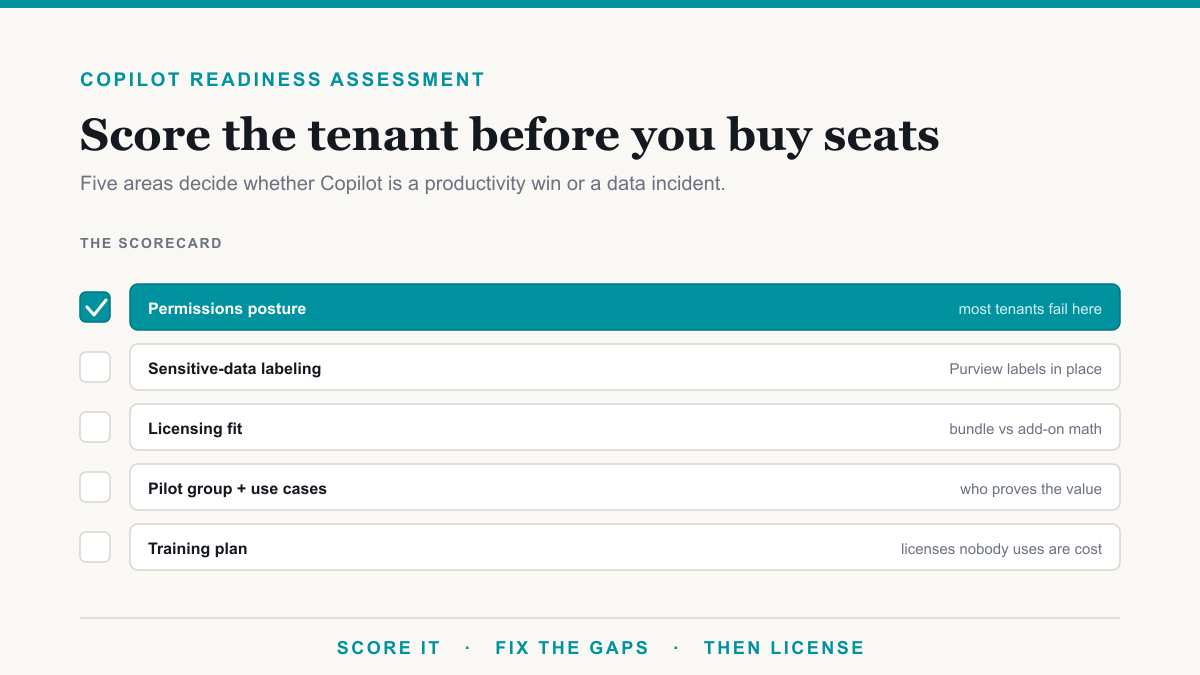
It is strongly advisable. Copilot does not create new access, but it surfaces whatever each person can already reach, including files they never knew existed. Cleaning up broad sharing links and site permissions first, at least on sensitive sites like HR and finance, avoids awkward surprises in the first week of a rollout.
How do I see every file shared with the whole company?
The SharePoint admin center can report on sharing links, including organization-wide and Anyone links, per site. SharePoint Advanced Management adds data access governance reports that list overshared sites across the tenant, and site access reviews that ask site owners to confirm who still needs access.
Will tightening sharing settings break collaboration?
Not if you do it in the right order. Changing the default link type only affects links created afterward, so day-to-day sharing keeps working. Existing broad links can then be reviewed and removed site by site, starting with sensitive locations, rather than switched off everywhere at once.
Getting ahead of SharePoint oversharing
SharePoint oversharing is not a sign that anyone did anything wrong. It is what years of easy collaboration defaults produce in every tenant, and it stays invisible right up until a Copilot rollout or an audit makes it visible all at once. The fix is straightforward: report on what is shared, clean the sites that hold sensitive data, change the defaults, and add labels and DLP so the cleanup sticks. If you are planning a Copilot rollout or would simply like to know what an oversharing scan would show in your tenant, Desert Lakes Solutions offers a no-pressure discovery call to walk through it. Book a discovery call whenever you are ready.