Securing Microsoft 365 Copilot with Microsoft Purview
Published July 18, 2026, updated July 26, 2026
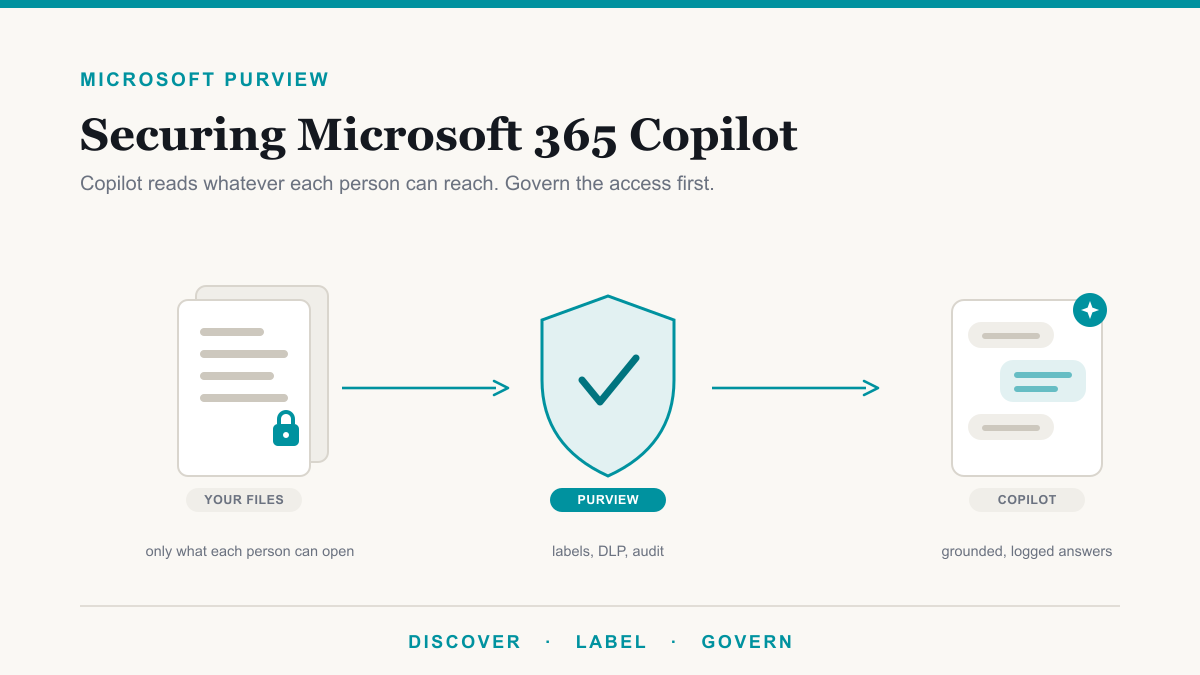
Securing Microsoft 365 Copilot comes down to one plain fact: Copilot can read whatever the signed-in person can read, nothing more, so the real work is cleaning up who has access to what, then using Microsoft Purview to label, restrict, and monitor the sensitive data that remains. Done in that order, a Copilot rollout delivers the productivity without turning years of quietly accumulated file permissions into a data incident. This guide is for the owners, administrators, and compliance leads of healthcare, legal, financial, and other regulated organizations that want Copilot's benefits and need a straight answer on the guardrails. It walks through the oversharing problem, what Purview's DSPM for AI actually does, and the practical order of operations before you switch Copilot on.
The real risk is oversharing, not the AI
Microsoft is direct about how Copilot handles permissions: it only surfaces organizational data the individual user already has at least view permissions for. Copilot does not bypass security, and it cannot grant anyone new access. So why does every Copilot conversation start with a security question? Because most organizations carry years of quiet permission sprawl: the site shared with "everyone" to save time in 2021, the payroll folder a departed manager shared too broadly, the "Anyone with the link" shortcuts nobody remembers creating.
Before Copilot, that sprawl was mostly invisible, because finding an overshared file still took deliberate digging. Copilot removes the digging. Ask it the right question and it will cheerfully summarize anything you technically have access to, which turns a dormant permissions problem into an active one. That is why securing Copilot is really a data governance project, and why Microsoft's own tooling for it lives in Microsoft Purview.
What Microsoft Purview DSPM for AI actually does
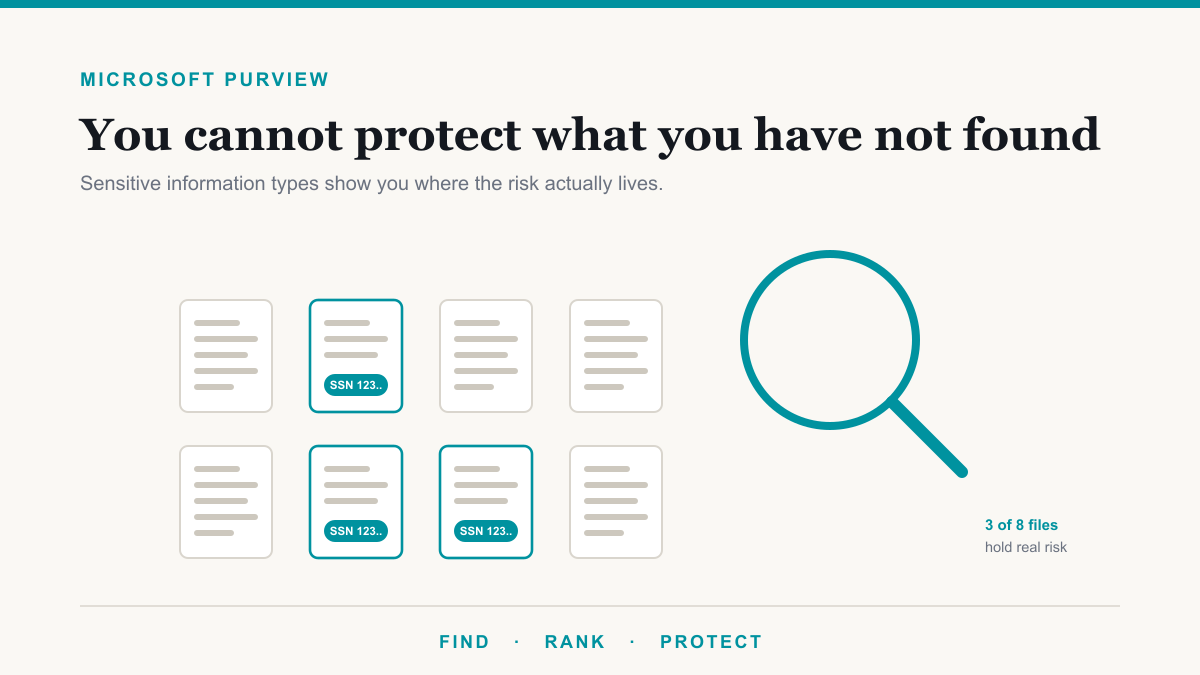
DSPM for AI, short for Data Security Posture Management for AI, is the part of Purview built specifically for this problem. In plain terms, it is a dashboard that answers three questions: which AI tools are people in the organization actually using, is sensitive information showing up in prompts and responses, and where is our data overshared. It runs a weekly data risk assessment of your hundred most-used SharePoint sites to flag oversharing, reports on AI activity across Copilot and third-party AI sites, and offers ready-made, one-click policies to close the most common gaps rather than making you build everything by hand.
One naming note, because Microsoft has moved this tool twice: it started as the AI Hub, became DSPM for AI, and is now being folded into a broader Data Security Posture Management console that is still rolling out. If your portal shows "DSPM for AI (classic)" next to a newer DSPM entry, that is why. The name keeps shifting; the job, visibility into how AI touches your sensitive data, stays the same.
Sensitivity labels are the seatbelt
The single most durable Copilot protection is one this cluster has covered before: sensitivity labels, the tags you attach to a file or email that mark how sensitive it is and can enforce rules like encryption on it. When a label encrypts a document, Copilot honors the encryption's usage rights. If someone can view a protected file but was not granted the right to copy from it, Copilot will not use that file's contents in their answers. The protection travels with the file, and it holds even when the file has been overshared, which is exactly the failure mode you are worried about.
Labels also follow the content forward: when Copilot generates something new from labeled sources, the new content inherits the highest-priority label among them, with some documented limits, so a summary of confidential material does not quietly become an unlabeled file. Microsoft's Purview considerations for Copilot spell out the mechanics. The practical takeaway: a small set of labels your team actually uses, with encryption on the most sensitive one or two, does more for Copilot safety than any amount of policy paperwork.
DLP, audit, and retention for Copilot
Purview's other tools each pick up a piece of the job. On the prevention side, data loss prevention gained a dedicated policy location for Copilot: on the higher Purview licensing tiers, a DLP policy can stop Copilot from using the contents of files and emails that carry certain sensitivity labels, so your most sensitive documents are never summarized in the first place.
On the accountability side, the news is better than most people expect: once auditing is on and Copilot is licensed, every interaction, prompt and response alike, is recorded in the Microsoft 365 audit log, and the standard audit tier is enough, no premium license required. One catch worth knowing: on the Business plans, unlike the enterprise plans, auditing is not switched on by default, so confirm it is enabled in the Purview portal before you rely on that trail. It is a one-time step.
Copilot conversations are also stored in the user's mailbox, which means eDiscovery, Microsoft's built-in tool for searching and exporting records when a legal or compliance request lands, can search, hold, and export them if a lawyer, regulator, or insurer ever asks. And retention policies now have a dedicated location for Copilot interactions, so a regulated organization can decide deliberately how long those conversations are kept, the same way it already governs email. If retention is new territory, our guide to Purview retention covers how those rules work.
What this looks like on the Business plans
Most independent practices and firms run Microsoft 365 Business Premium, not the enterprise plans, so honesty about tiers matters here. The good news first: the audit trail described above works on any plan once auditing is enabled and Copilot is licensed, and Business Premium already includes manual sensitivity labels and DLP for email and files, which covers the seatbelt basics.
Microsoft also states that a single Microsoft 365 Copilot license unlocks SharePoint Advanced Management for your SharePoint admins, which carries the oversharing reports and the Restricted Content Discovery control mentioned below. One caveat: Microsoft's documentation names the full Microsoft 365 Copilot add-on there, not the lower-priced Copilot Business version many small offices buy, so if you go the Business route, confirm those tools appear in your admin center before counting on them.
The honest part: the advanced layer, automatic labeling, the DLP policies that block labeled files from Copilot answers, insider risk detection for AI misuse, and the full DSPM for AI console, generally sits in the enterprise Purview tiers or their add-ons. Microsoft does not publish one clean "you need this SKU" answer for DSPM for AI; the requirements attach to each underlying feature. For a small organization, the sensible reading is that permissions cleanup, labels, baseline DLP, and the audit trail get you most of the protection, and the step-up licensing is a decision to make when a specific obligation calls for it.
Where to start before you roll out Copilot
Microsoft's own deployment guidance boils down to a sensible order of operations, and it matches what we do in practice:
- Find the oversharing first. Review how your SharePoint sites and shared libraries are actually permissioned, starting with the places patient, client, or financial records live. Retire "everyone" access and anonymous links that no longer have a reason to exist.
- Put the seatbelts on. Set up a small set of sensitivity labels, encrypt the most sensitive tier, and put a baseline DLP policy on your riskiest data type.
- Keep sensitive sites out of reach. For sites that should never surface in Copilot or search, use Restricted Content Discovery rather than hoping nobody asks. One currency note: older advice often recommends Restricted SharePoint Search as a stopgap, but Microsoft is retiring that feature, with new enablement blocked starting July 31, 2026, and it was never a security boundary.
- Then pilot Copilot with a small group, watch the audit activity and DSPM reports, and widen the rollout as the picture stays clean.
The order is the point. Rolling Copilot out first and governing it later means running the experiment on your real patient or client data. Doing the cleanup first turns the rollout into a non-event, and the same permissions and labeling work pays off across everything else on our Copilot readiness checklist.
Frequently asked questions
Does Microsoft 365 Copilot see data users do not have access to?
No. Microsoft 365 Copilot only surfaces content the signed-in user already has at least permission to view. It cannot elevate anyone's access. The risk comes from permissions that are already too broad, because Copilot makes it much faster to find everything a person can technically reach.
What is Microsoft Purview DSPM for AI?
DSPM for AI, short for Data Security Posture Management for AI, is a dashboard in Microsoft Purview that shows which AI tools your organization uses, whether sensitive data is showing up in prompts and responses, and where your files are overshared, with ready-made policies to close the gaps.
Can Purview stop Copilot from using certain files?
Yes, two ways. If a sensitivity label encrypts a file, Copilot will not use its contents in answers for anyone who lacks copy rights to it. And on the higher Purview licensing tiers, a data loss prevention policy can stop Copilot from using the contents of labeled files in its responses.
Are Copilot prompts and responses logged?
Yes, once auditing is enabled, and on the Business plans that is a one-time step to confirm since it is not on by default there. Every Copilot interaction is then recorded in the audit log, stored in the user's mailbox, and searchable with eDiscovery, and retention policies can keep or delete Copilot conversations on a schedule.
Is Copilot safe for a HIPAA-regulated practice?
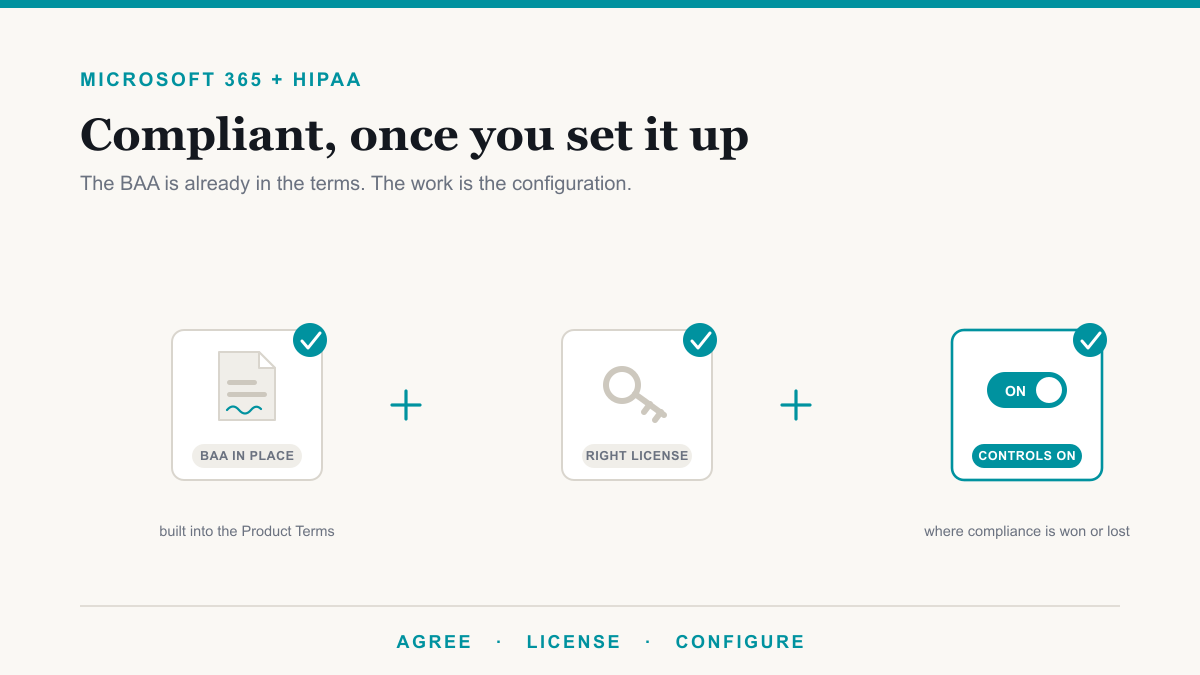
It can be, with preparation. Microsoft lists Microsoft 365 Copilot among the services covered by its HIPAA Business Associate Agreement, so the paperwork has an answer. The practical safety depends on your permissions, labels, and monitoring, which is exactly what Purview is for.
What is happening to Restricted SharePoint Search?
Microsoft is retiring it. New enablement is blocked starting July 31, 2026, and Microsoft describes it as a short-term stopgap rather than a security boundary. The durable path is fixing site permissions and using Restricted Content Discovery to keep sensitive sites out of Copilot and search.
Securing Microsoft 365 Copilot without stalling it
Securing Microsoft 365 Copilot is not a reason to shelve it. The organizations that get this right treat the rollout as the deadline that finally forces the permissions cleanup they needed anyway, then let Purview's labels, DLP, and audit trail keep it honest from there. If you would like a clear picture of what Copilot would see in your environment today, start with The Copilot Exposure List: pick one category of sensitive data and Desert Lakes Solutions pulls the actual list of files anyone in your company can open right now. Named files, not a score, and no charge for qualified businesses.